BLOGS
How to Remove a Background in Render FX, Step by Step
Generate a batch of AI images from a text prompt in Render FX, pick your favorite, and remove its background with one click. No masking or selections needed.
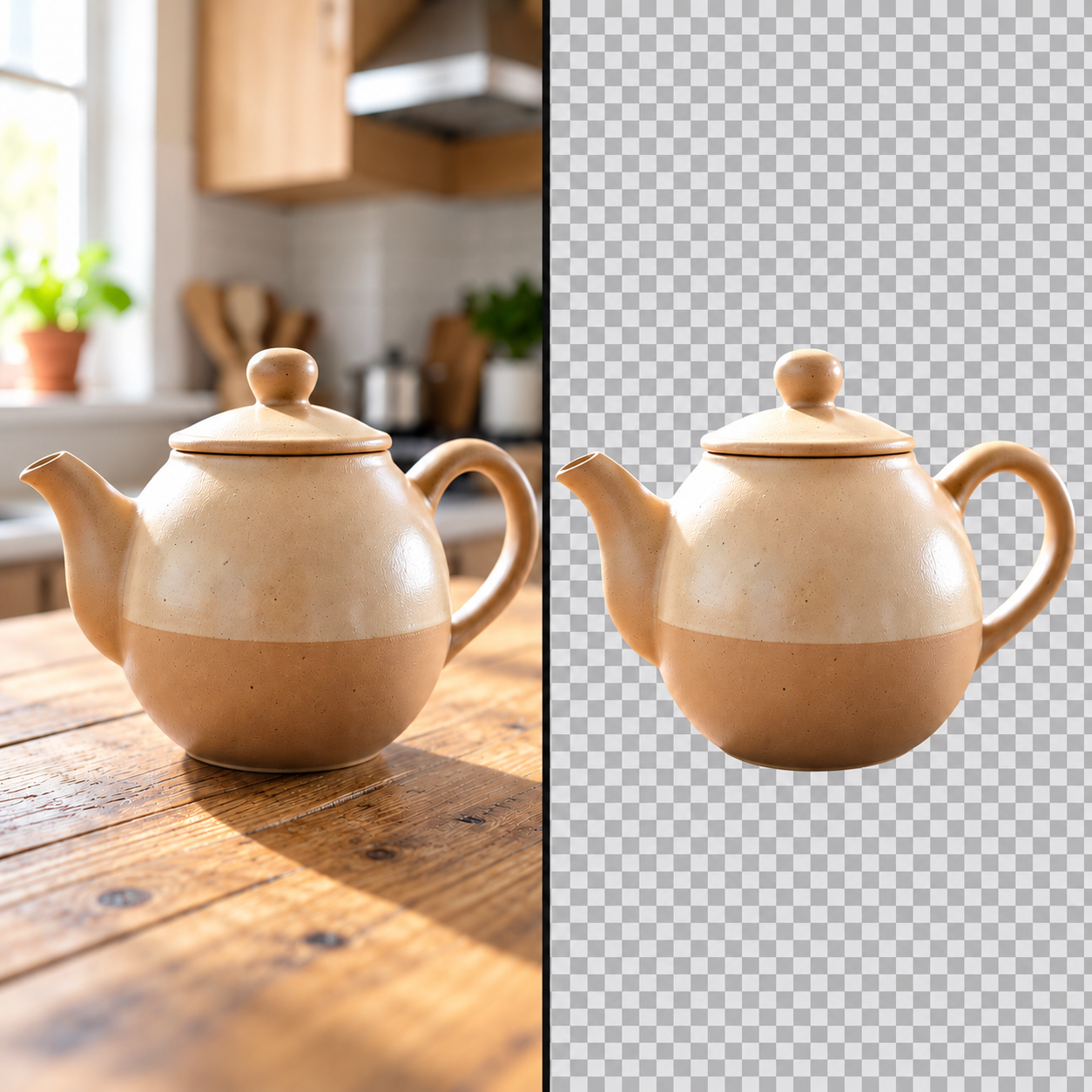
Generate a batch of AI images from a text prompt in Render FX, pick your favorite, and remove its background with one click. No masking or selections needed.
Render FX is Distinct AI's local, desktop text-to-image app for generating AI images from written prompts, with no cloud processing and no per-image credits. This tutorial shows how to generate a batch of AI images from a text prompt, pick the one you like, and use Smart Background Removal to remove its background with one click, no masking or selections needed.
Watch the video tutorial here: https://www.youtube.com/watch?v=BdRyV1IWatU
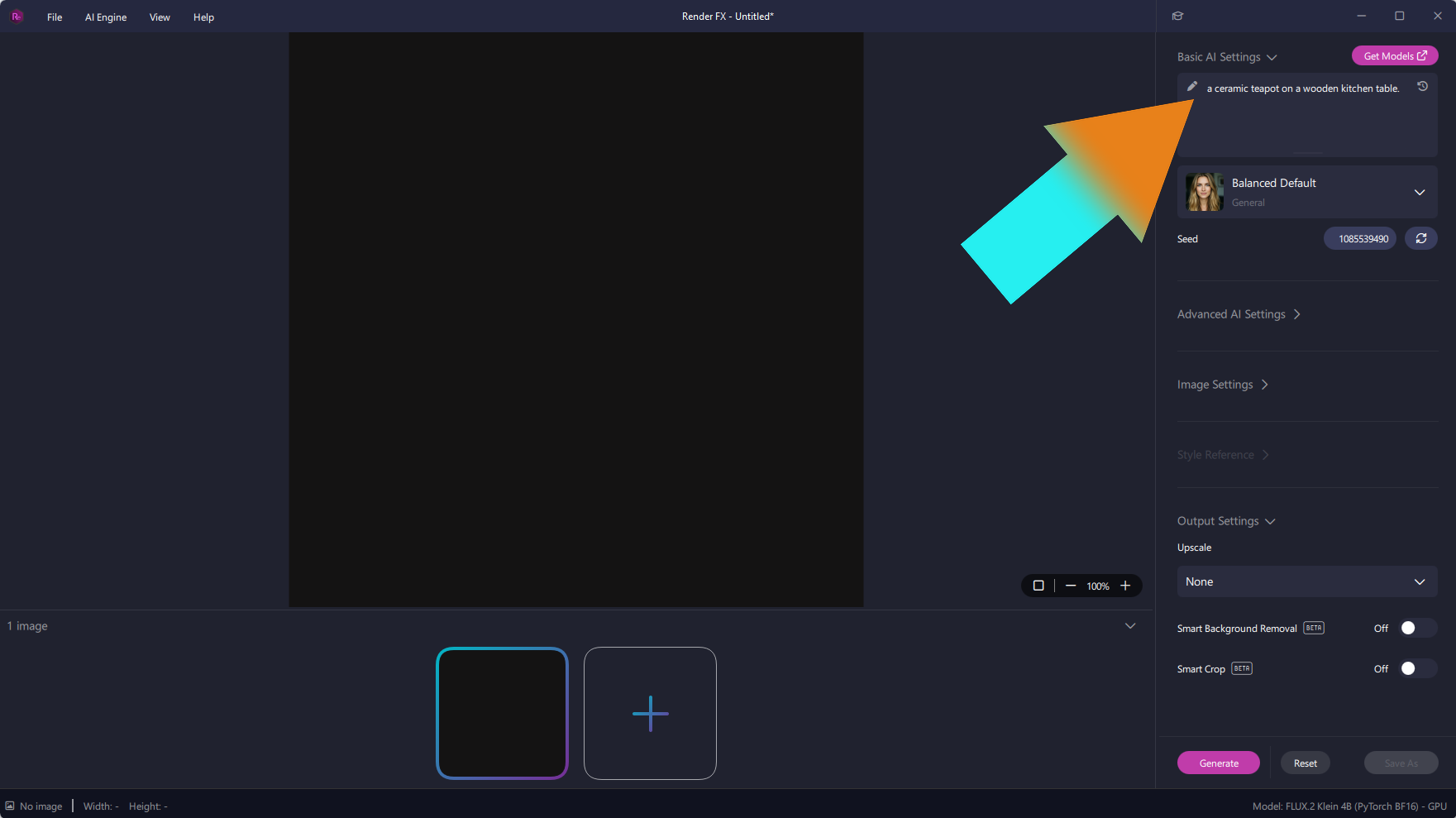
Render FX is a text-to-image AI app, so you describe the picture you want in words. Type your description into the prompt box under Basic AI Settings. This example uses: a ceramic teapot on a wooden kitchen table. The style preset under the prompt box is set to Balanced Default (General).
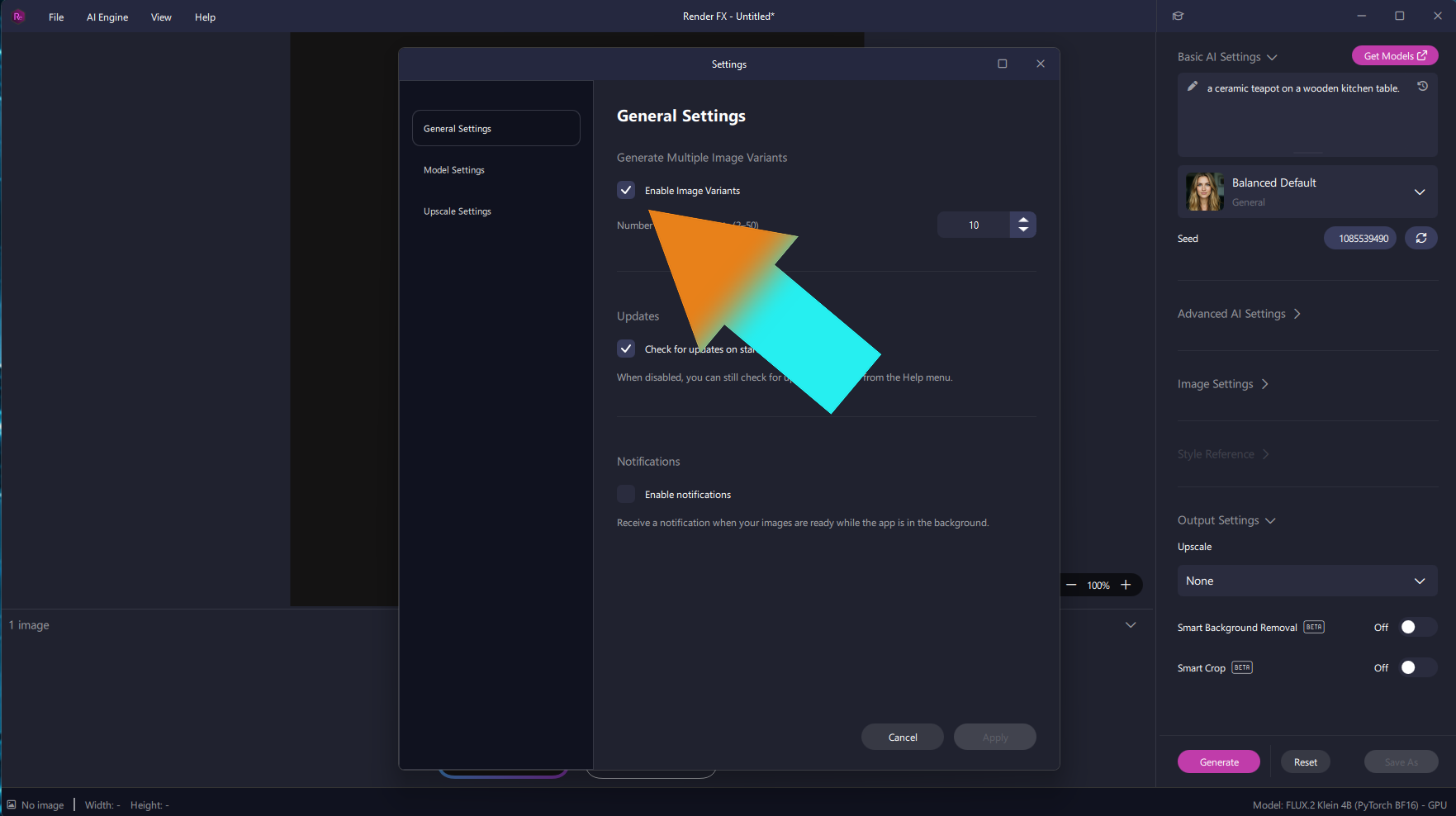
One prompt can give you many different results, so generate a batch and choose your favorite. Open the Settings window, go to General Settings, and check Enable Image Variants. Then set the Number of Image Variants (2 to 50). This example uses 10, so Render FX creates 10 variations of the same prompt.
Click Generate at the bottom of the settings panel. Render FX creates your AI images locally on your computer, with no credits. Your variations appear in the gallery along the bottom of the window. Scroll through them and click the one you want to bring it into the main view.
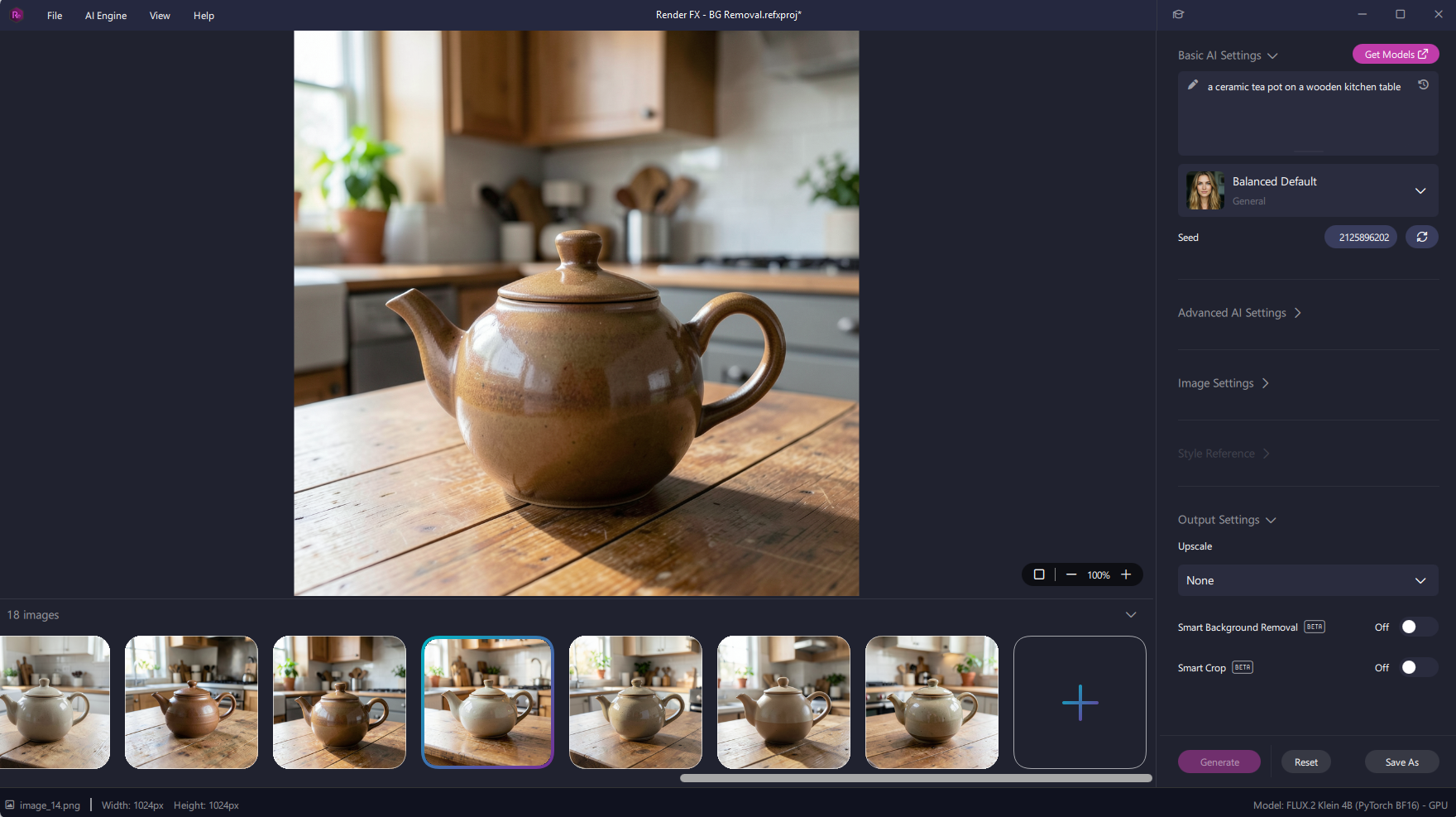
Now separate the teapot from the kitchen. In the settings panel, under Output Settings, switch the Smart Background Removal toggle from Off to On. The background is gone. No masking, no selections, just one click.
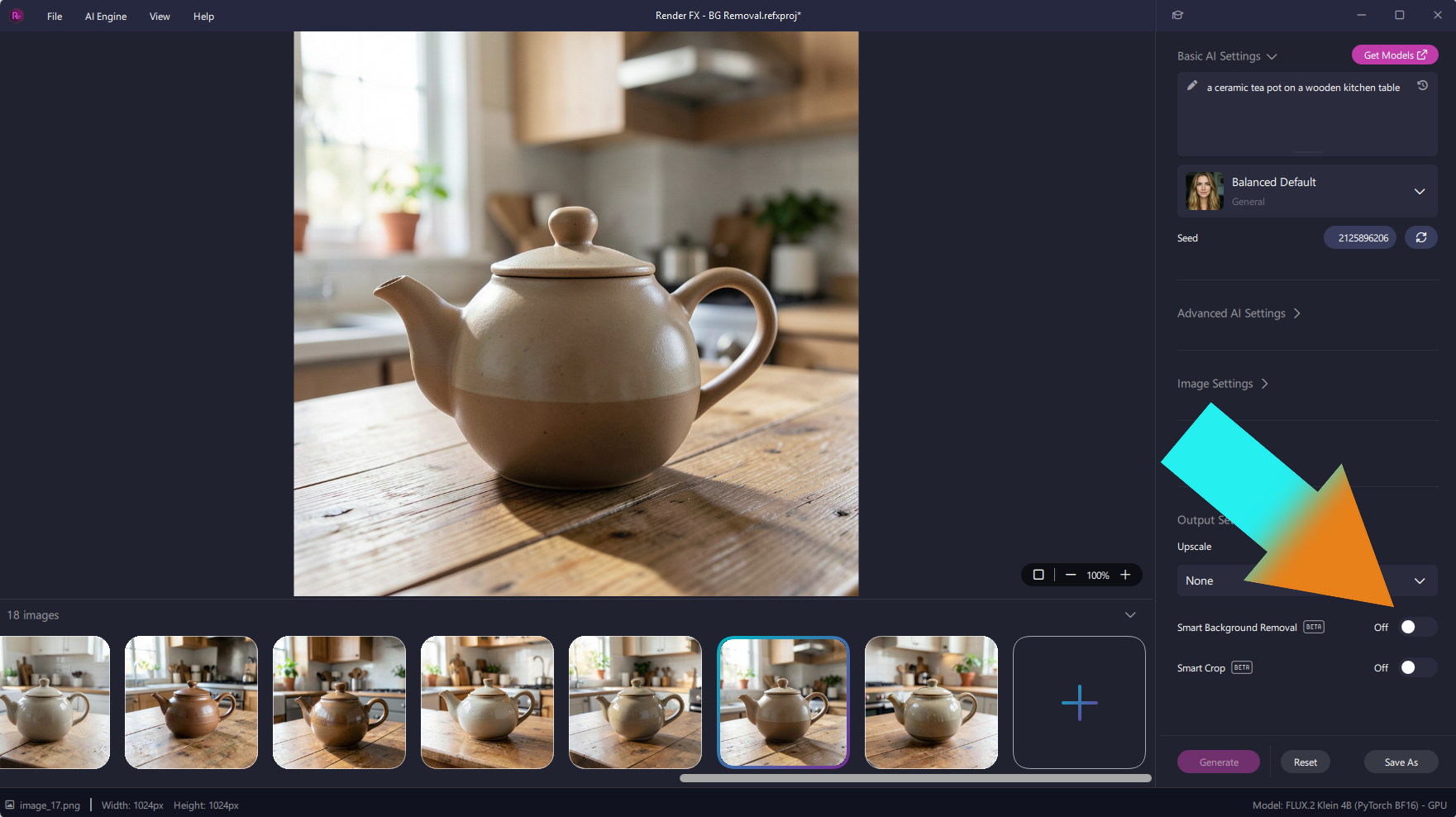
Your teapot now sits on a transparent background, shown as a checkerboard in the canvas. Switch the toggle off and the original background returns, so you can compare the two.
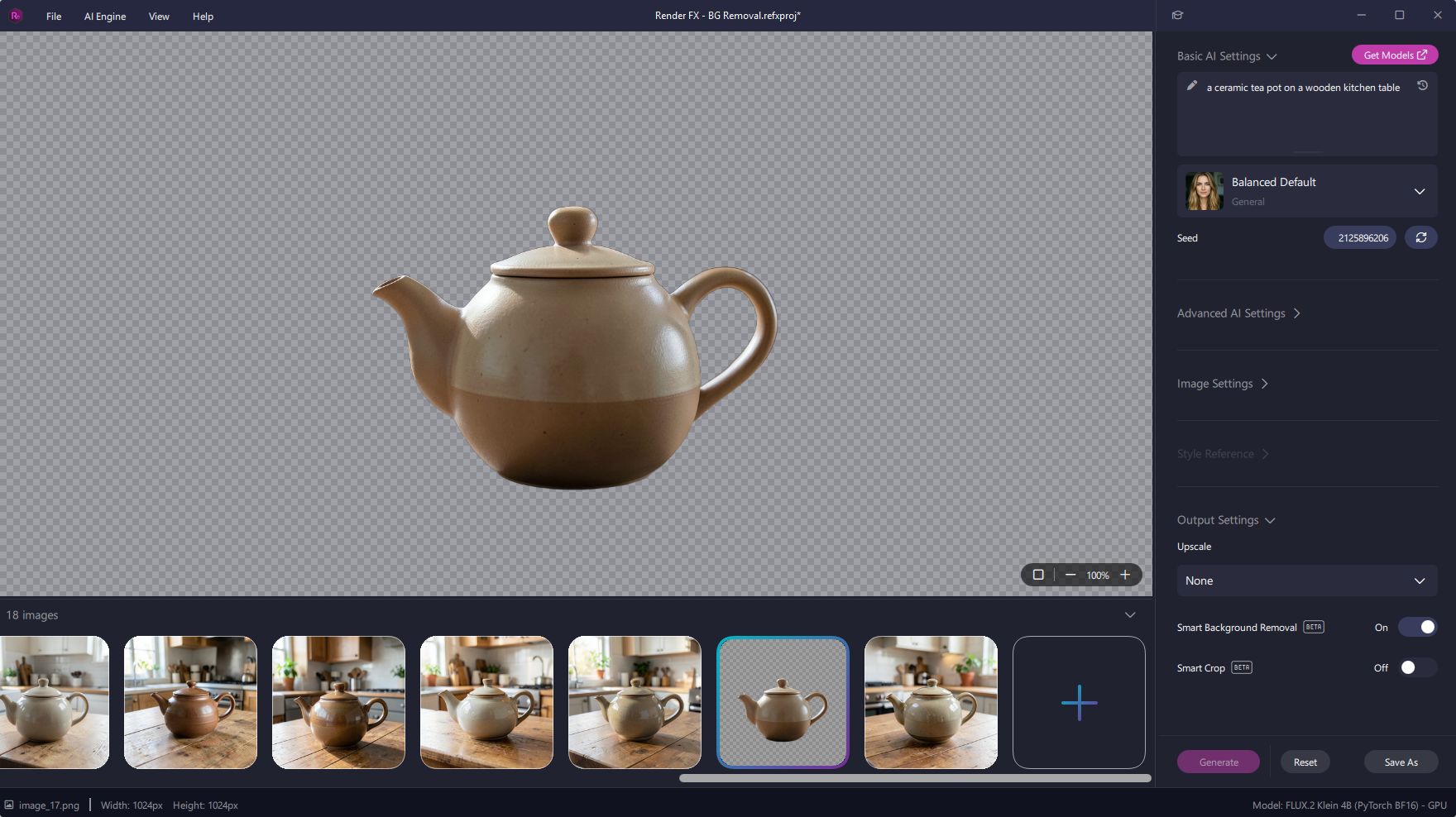
Smart Background Removal switched on: the teapot on a transparent background.
Smart Background Removal is marked Beta in Render FX, so give the edges a quick look before you save your image.
Generating a batch of AI images and removing a background in Render FX takes one prompt and one click. Try a product, a character, or any subject you'd normally have to cut out by hand.
Learn how to get started with the Distinct AI product line-up or explore the rich features built into each product.
