BLOGS
How to Remove a Background in Vision FX, Step by Step
Edit a photo with a text prompt in Vision FX, then remove its background with one click. No masking or selections needed.
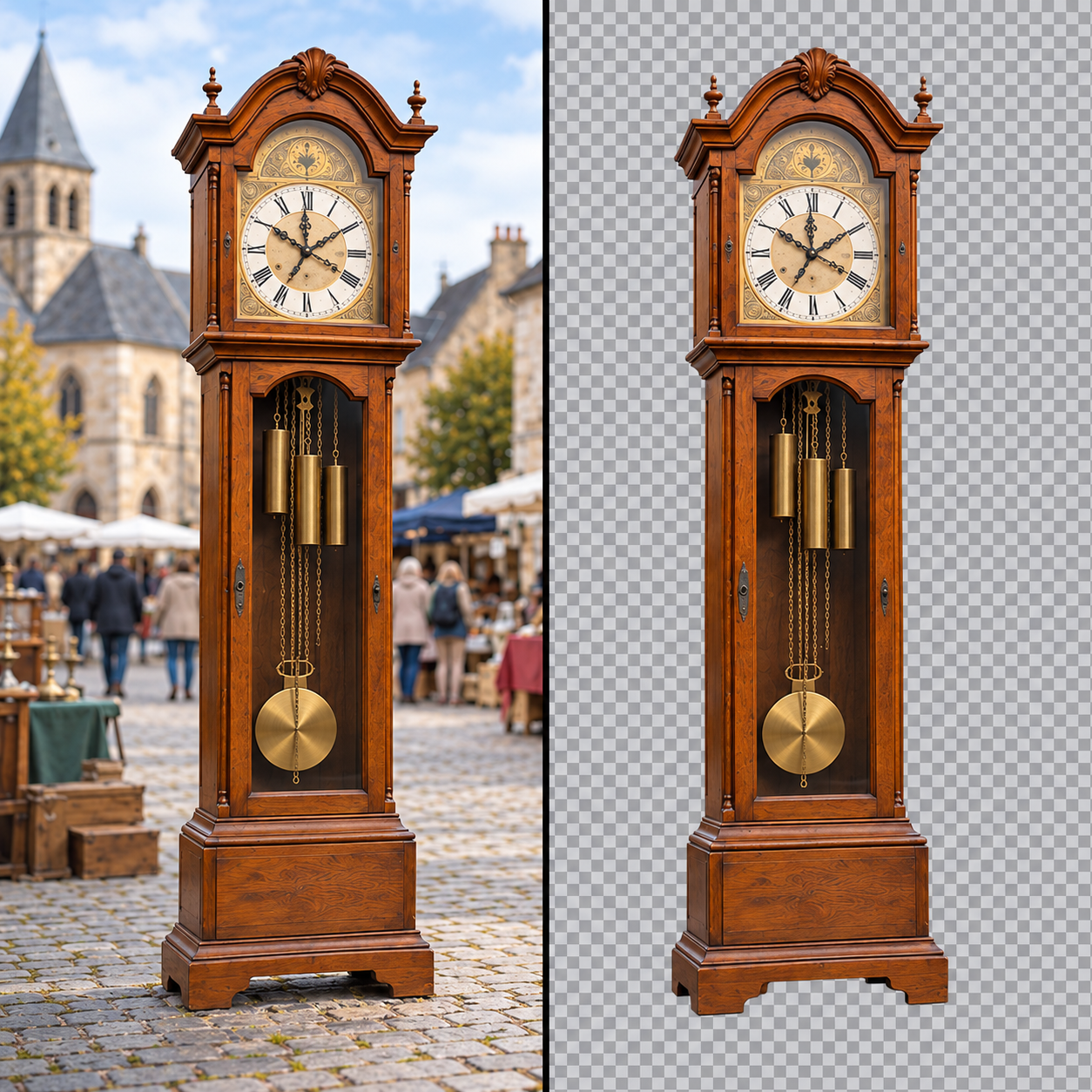
Edit a photo with a text prompt in Vision FX, then remove its background with one click. No masking or selections needed.
Vision FX is Distinct AI's local, desktop image-to-image app for editing and reimagining your own photos with written prompts, with no cloud processing and no per-image credits. This tutorial shows how to edit a photo with a text prompt, then use Smart Background Removal to remove its background with one click, no masking or selections needed.
Watch the video tutorial here: https://www.youtube.com/watch?v=5qA6rKbMIO0
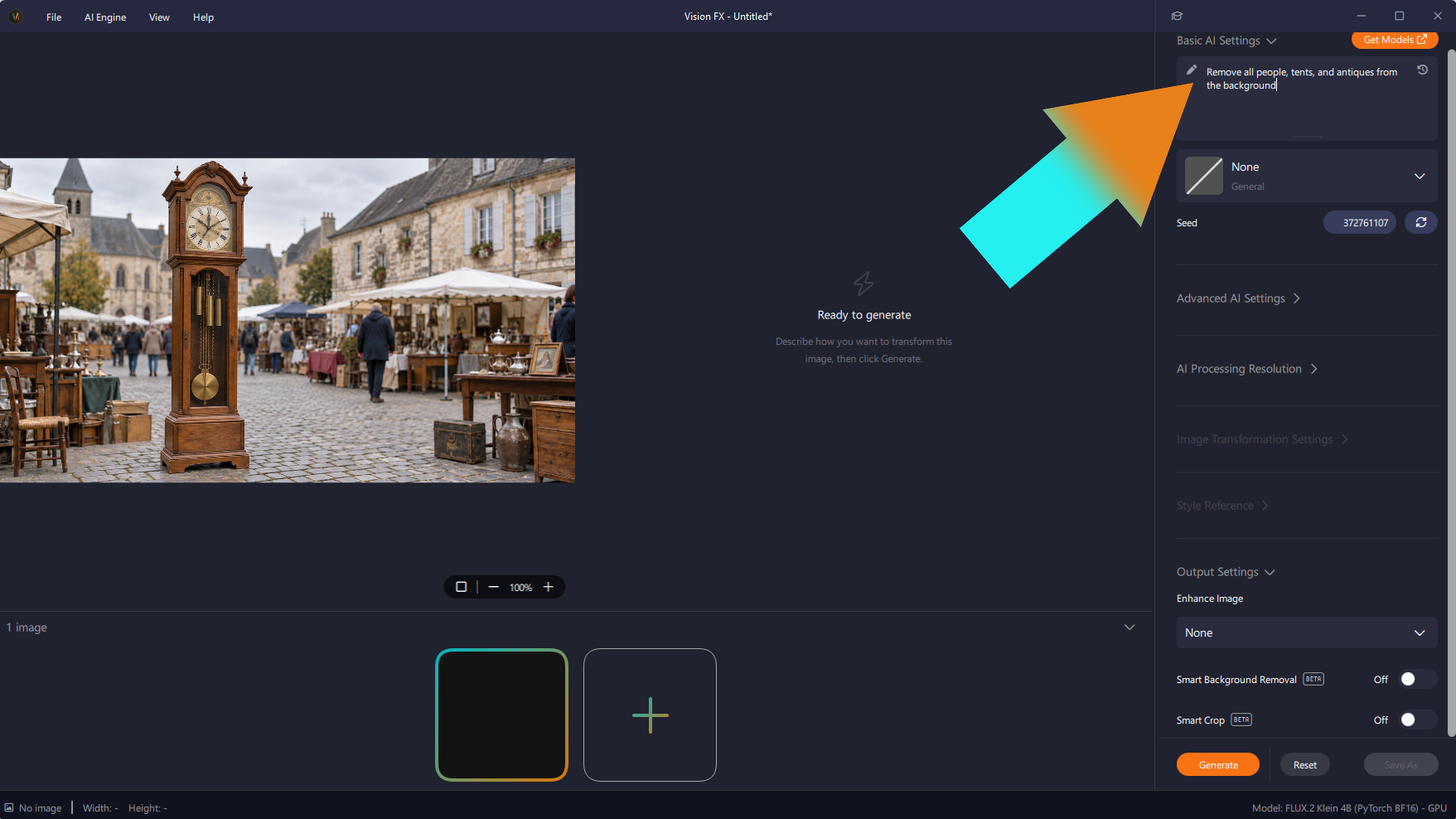
Vision FX is an image-to-image AI app, so you start with a photo of your own. Load your image, then type what you want changed into the prompt box under Basic AI Settings. This example starts with a grandfather clock at an outdoor antiques market and uses the prompt: Remove all people, tents, and antiques from the background.
Click Generate at the bottom of the settings panel. Vision FX edits your image locally on your computer, with no credits. The Before and After view shows your original next to the result. Here the crowd, the tents and the antiques are gone, and the grandfather clock stands alone in an empty square.
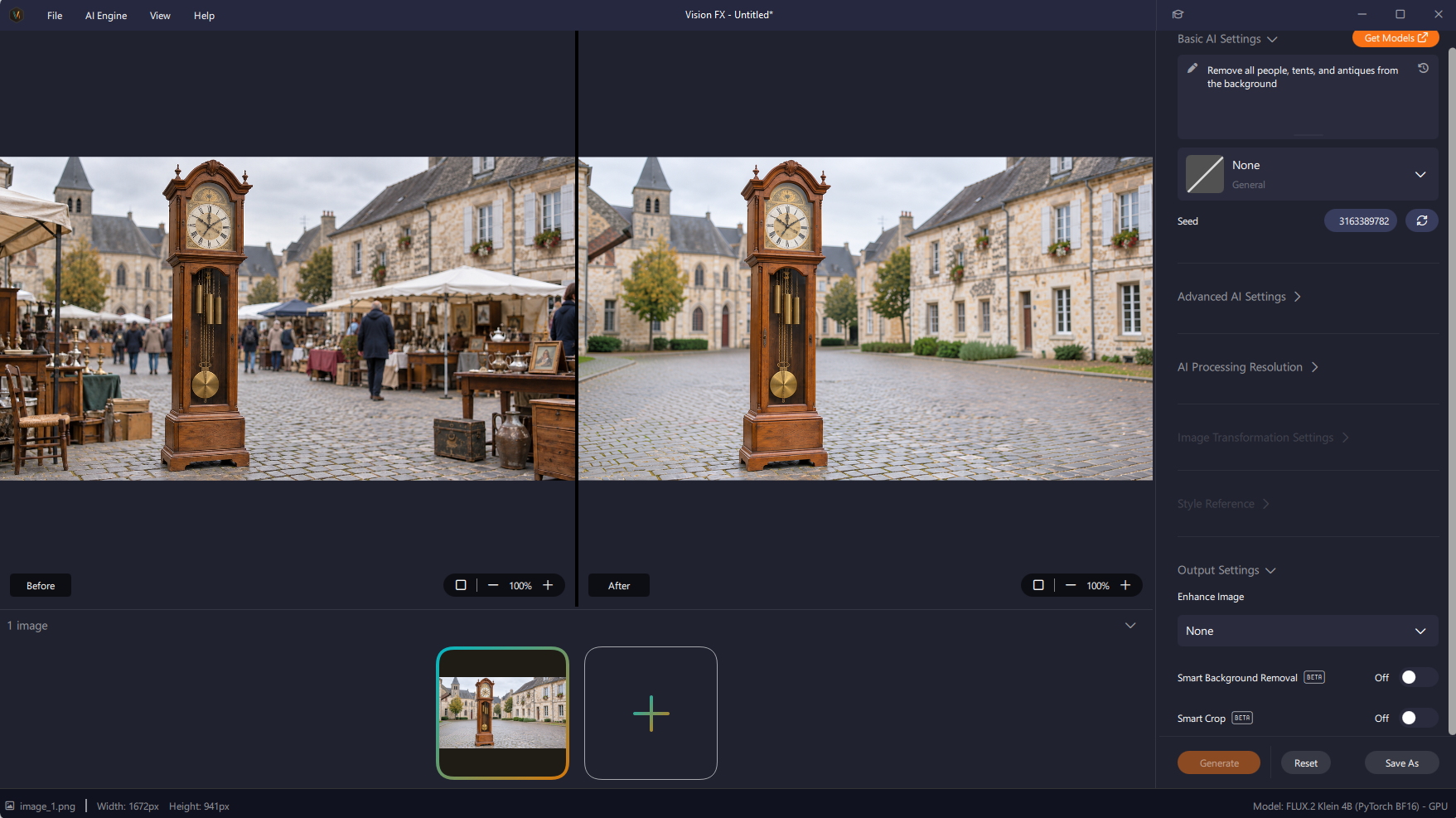
Before and After: the edited image with the market cleared out.
Now separate the clock from the square. In the settings panel, under Output Settings, switch the Smart Background Removal toggle from Off to On. The background is gone. No masking, no selections, just one click.
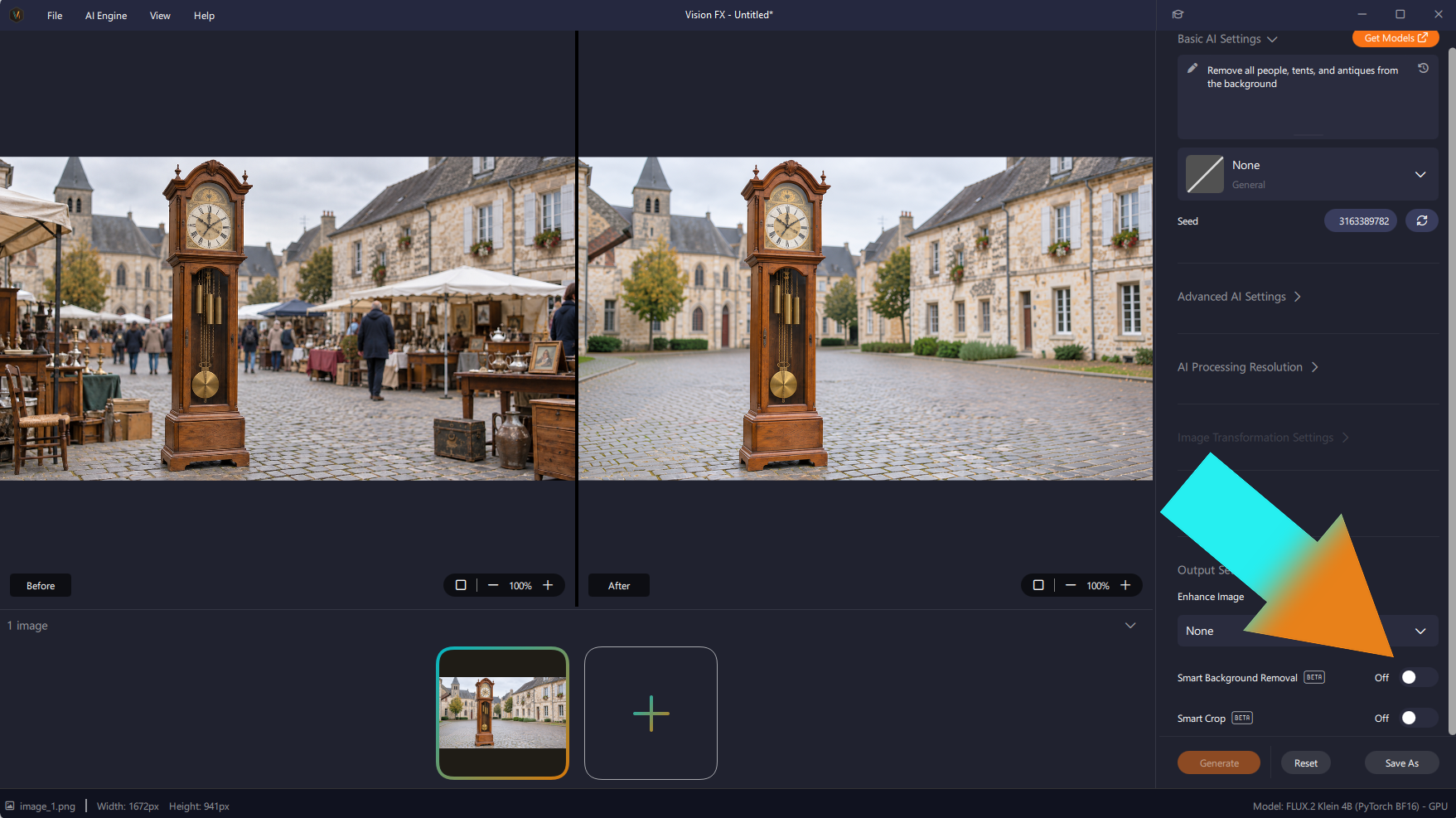
Your grandfather clock now sits on a transparent background, shown as a checkerboard in the After view. Switch the toggle off and the original background returns, so you can compare the two.
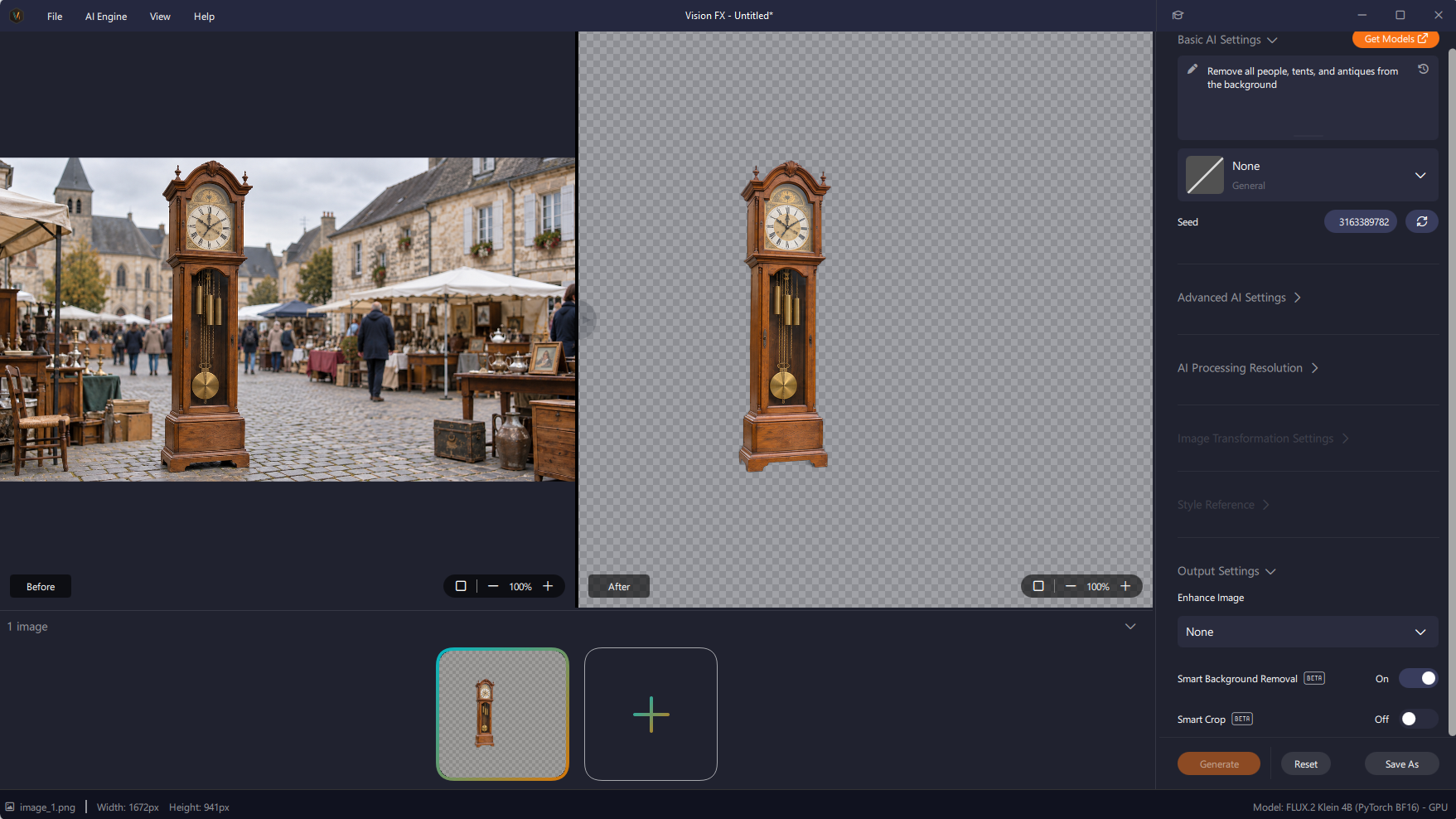
Smart Background Removal switched on: the clock on a transparent background.
Smart Background Removal is marked Beta in Vision FX, so give the edges a quick look before you save your image.
Editing a photo with a prompt and removing its background in Vision FX takes one prompt and one click. Try a product shot, a portrait, or any photo you'd normally have to cut out by hand.
Learn how to get started with the Distinct AI product line-up or explore the rich features built into each product.
